



Flickr is a popular, free website that allows you to easily store images in the cloud that can be shared with other people. Flickr is now the cloud photo repository we recommend for storing the photos you intend to use as puzzle subjects for the custom jigsaw puzzles you create at Jigsaw Explorer. You need to sign up for a free Flickr account to upload photos there.
1. After creating an account on Flickr, click the Upload icon (the cloud with the upward arrow in the top toolbar).

Choose your photo and click “Upload 1 Photo” to add it to your account.
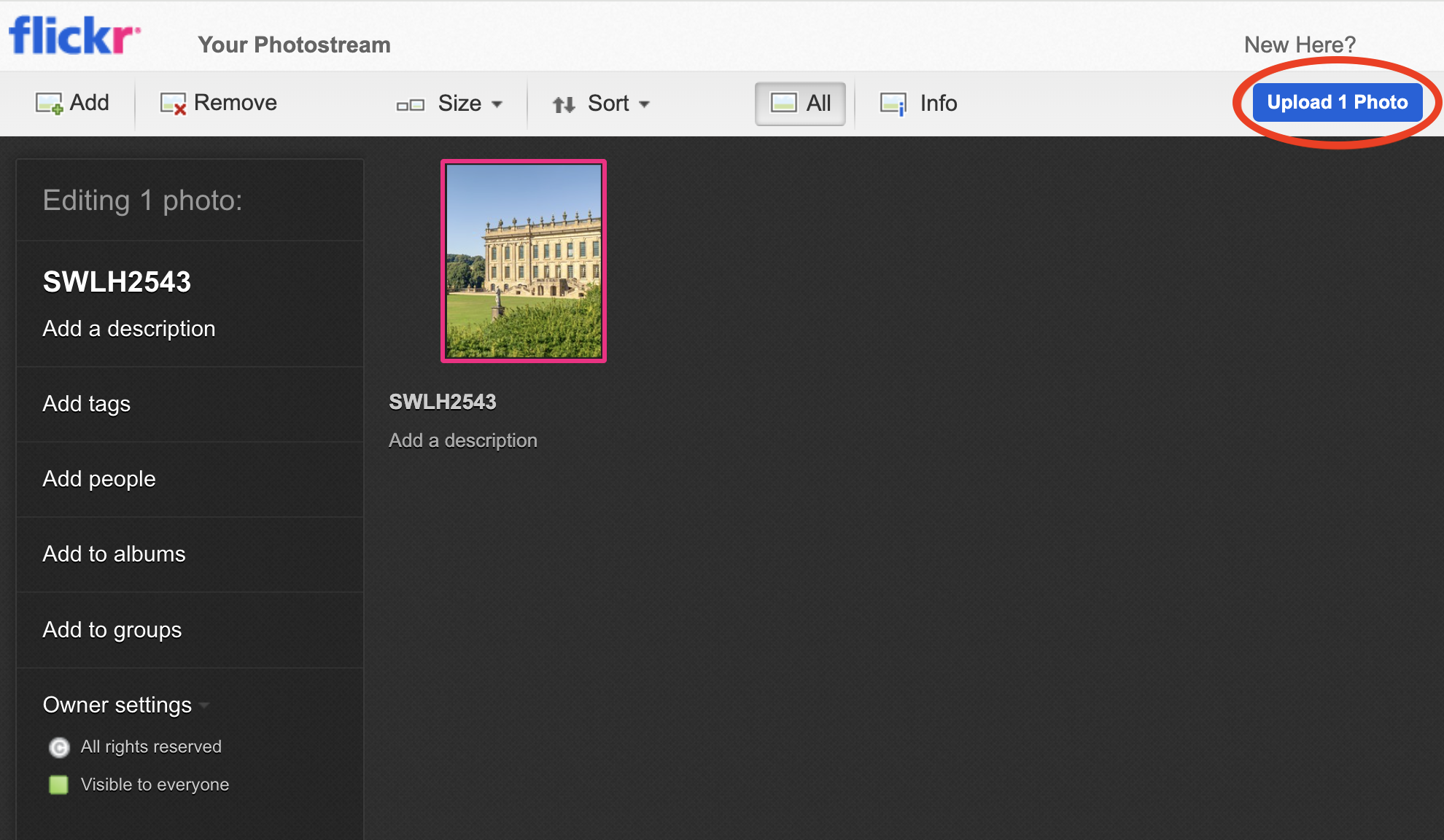
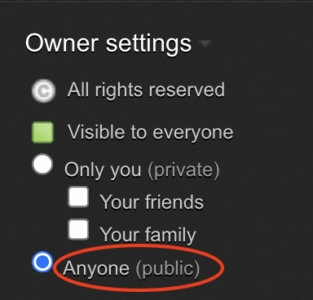
2. Before finishing the upload, make sure your photo’s visibility setting is Public. This step ensures your photo can be accessed by Jigsaw Explorer.
3. After uploading you may see an advertisement or the following screen. If so, select “Continue to Flickr” to go to your photostream with the uploaded image.

4. After uploading, click on the photo in your Flickr photostream to open its full view page.
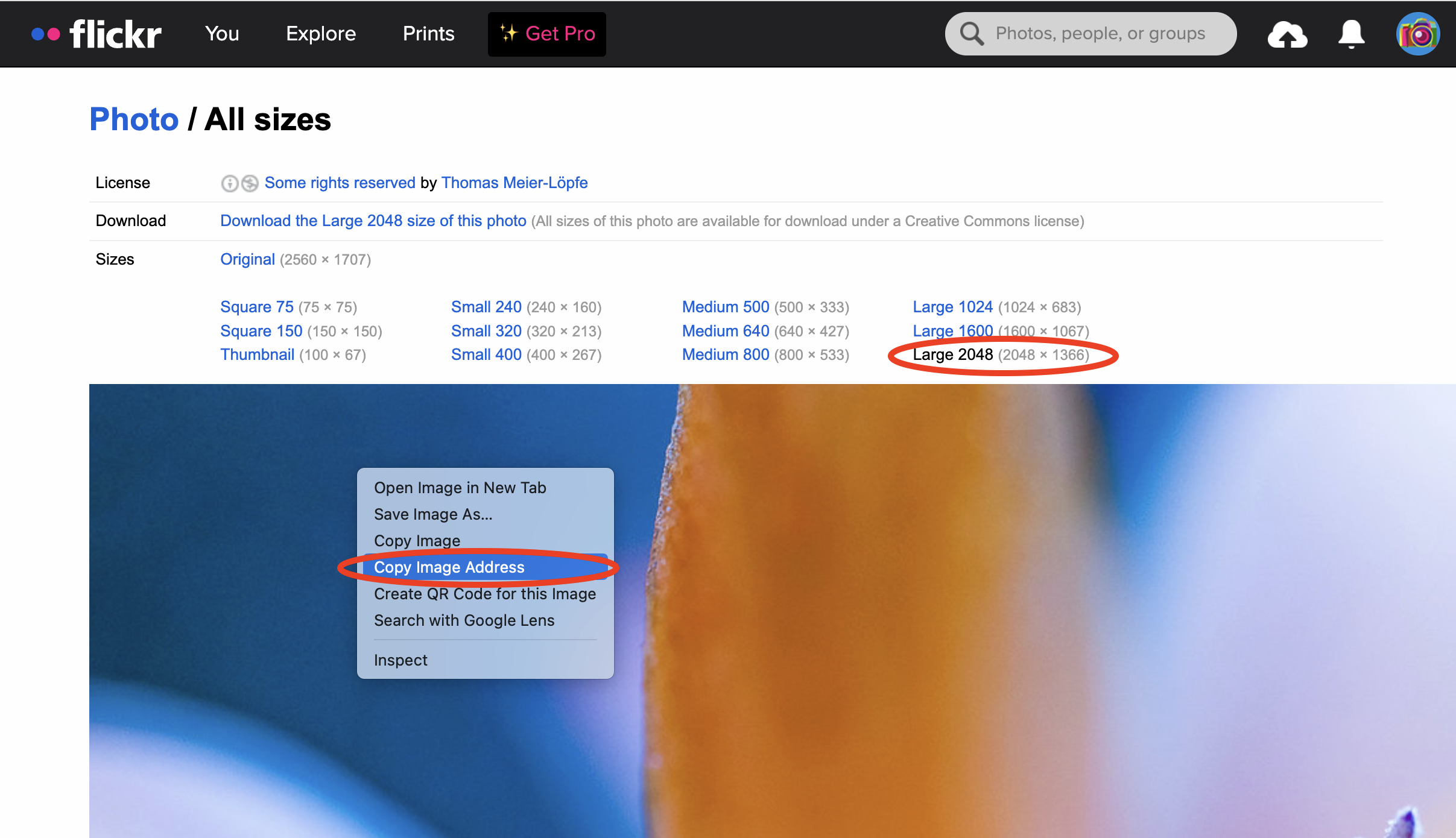
5. To get the URL, once your photo is open, click the Download icon (down arrow) and select “View all Sizes”.
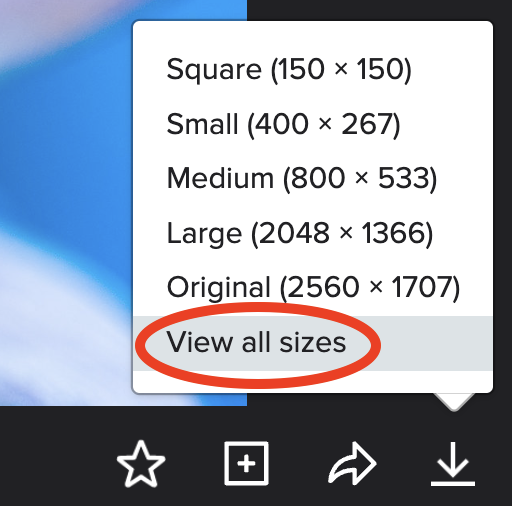
6. Select the link to an appropriate photo size in the “Sizes” section. We recommend selecting a size of about 2400px. Photos larger than that will cause the resulting puzzle to load more slowly.
Right-click on the image link and select “Copy Image Address” from the pop-up menu. Note that the wording of the correct menu selection varies depending on the browser used. Be careful to choose the menu selection that copies the image address, not the menu selection that copies the image itself.
7. Paste your photo URL into Jigsaw Explorer’s custom jigsaw puzzle page.
